How to Control Talent 2 with Stream Deck, Web UI, and Keyboard
OBSBOT Talent 2 supports multiple external control options, including Elgato Stream Deck, Web UI and keyboard shortcut, giving you more flexible ways to manage your production beyond the built-in touchscreen.
Stream Deck
Install Stream Deck Software
- Download and install Stream Deck software from Elgato's official website.
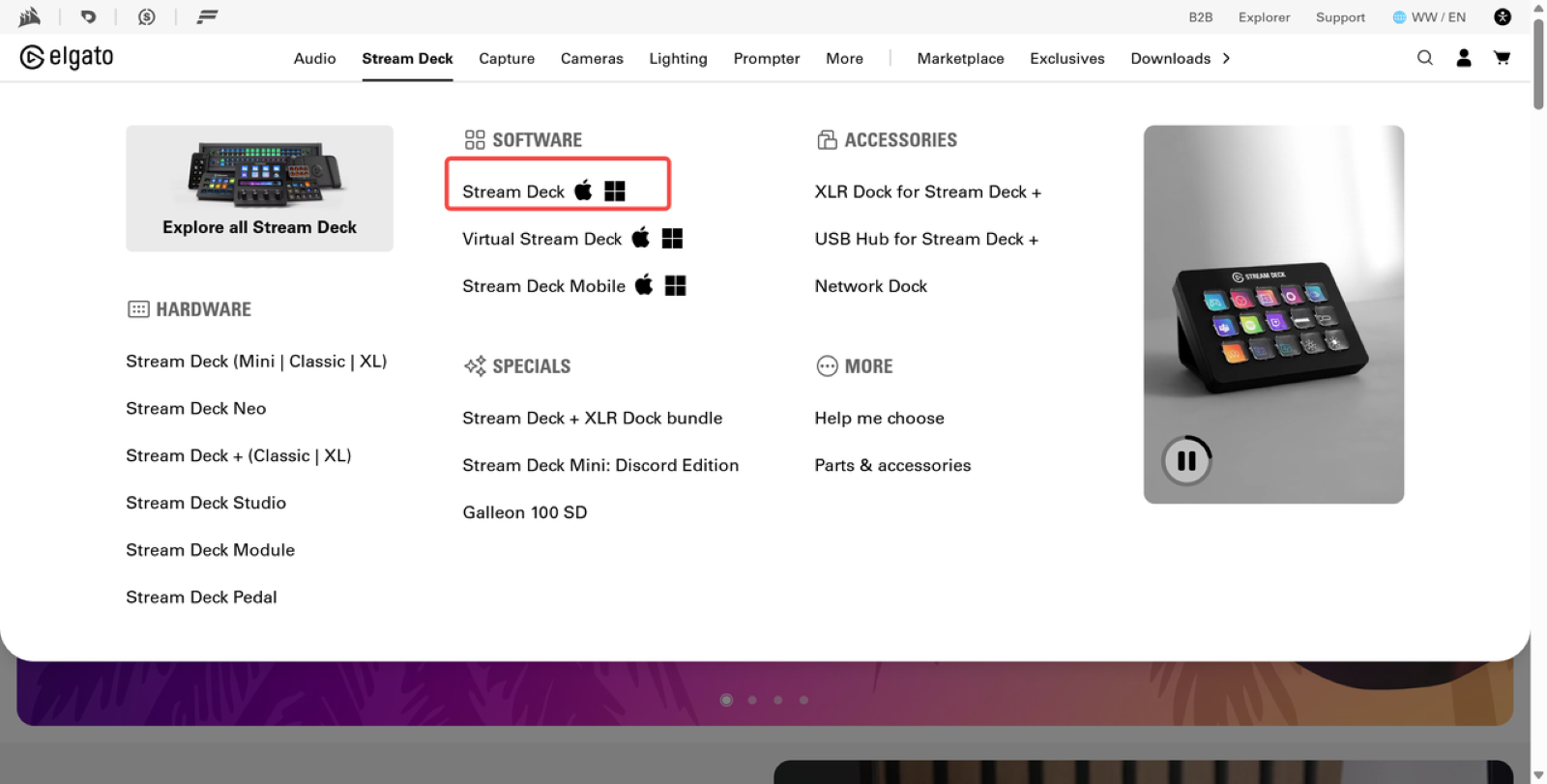
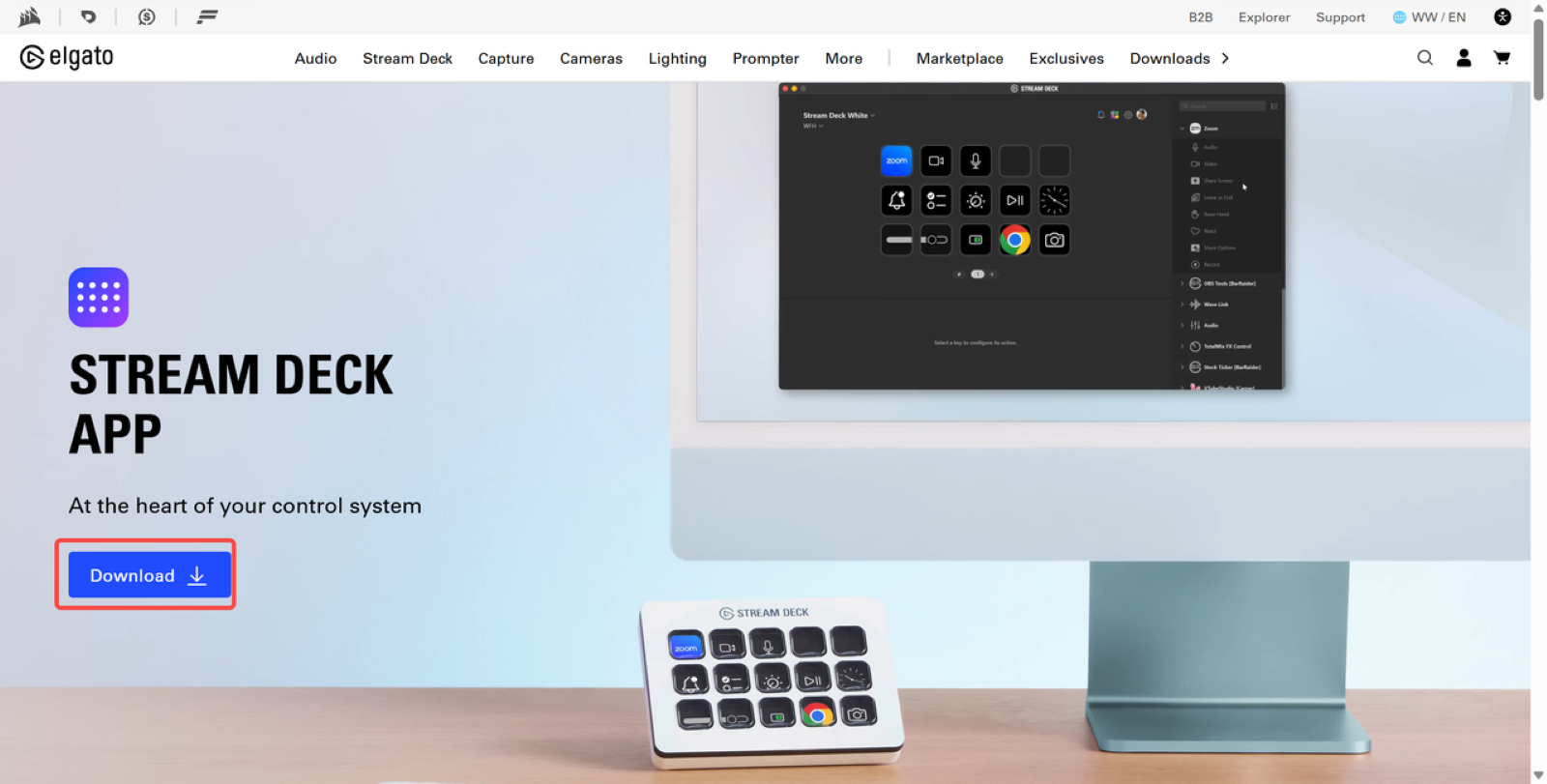
- Once installed, connect your Stream Deck device to your computer and launch the software.
Install the OBSBOT Plugin
- Open the Plugin Store in the Stream Deck software and search for OBSBOT.
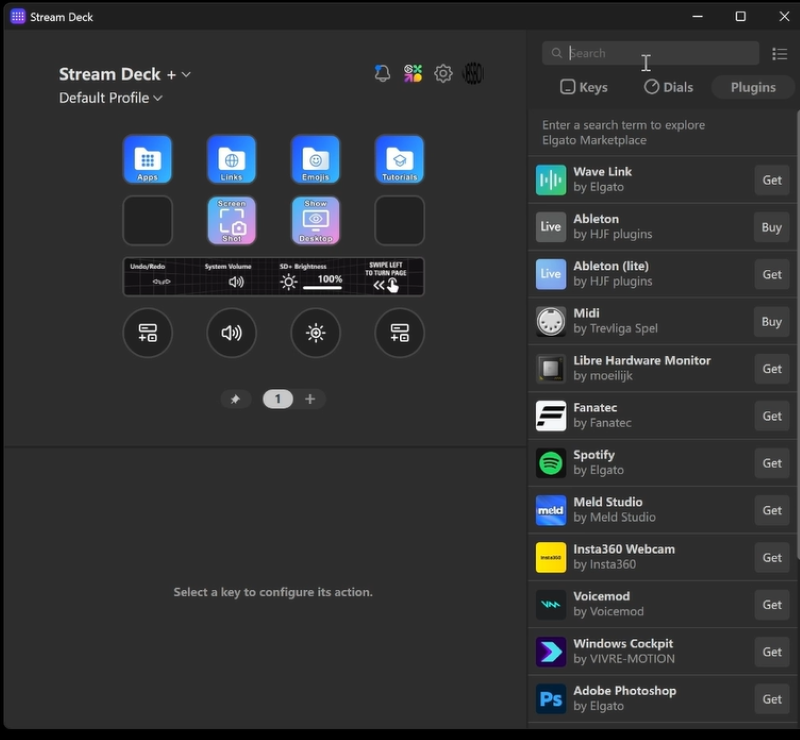
- Locate the official OBSBOT plugin. Click Get to download and install the plugin.
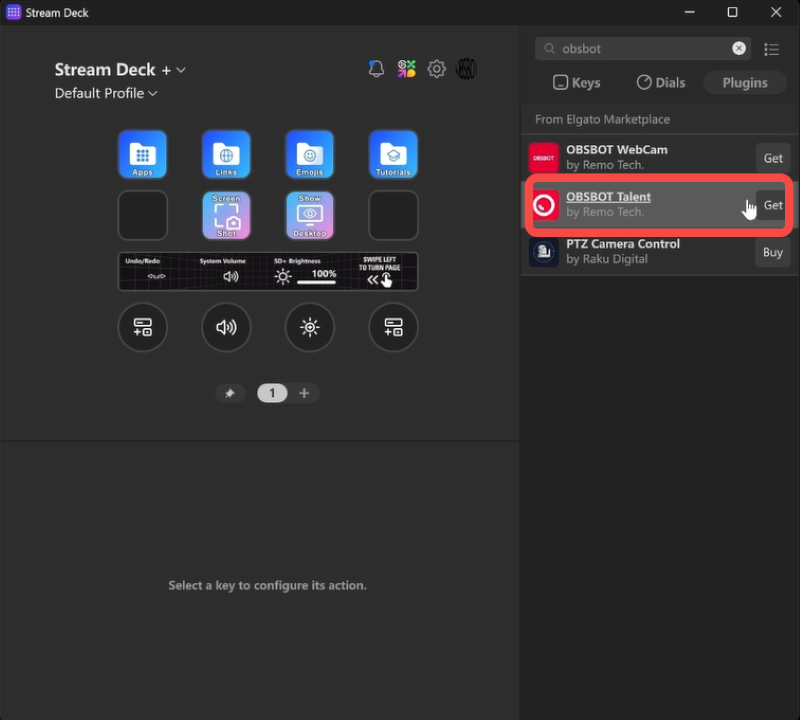
The OBSBOT plugin provides quick access to Talent 2 functions including scene management, PTZ control, GFX overlays, and audio/video adjustments.
Connect Talent 2 to Stream Deck
Make sure your computer and Talent 2 are connected to the appropriate network.
- Find the IP address of your Talent 2.
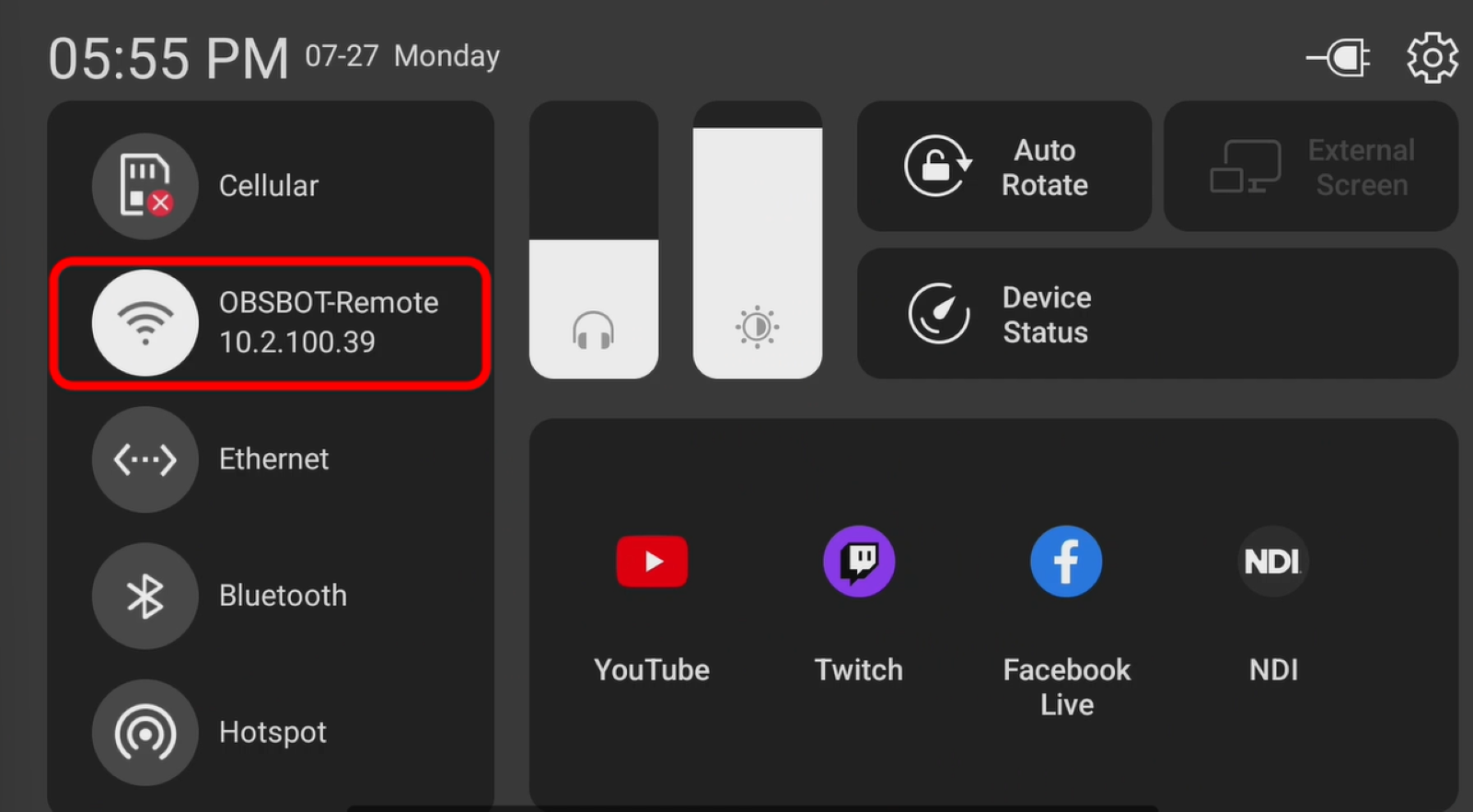
- In the Stream Deck software, open the OBSBOT plugin settings. Enter the Talent 2 IP address to establish the connection.
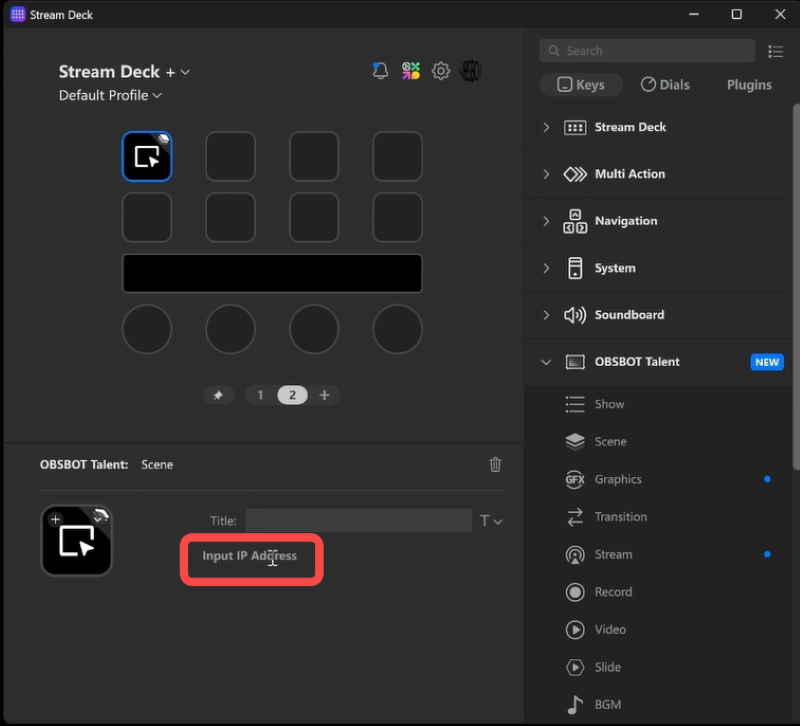
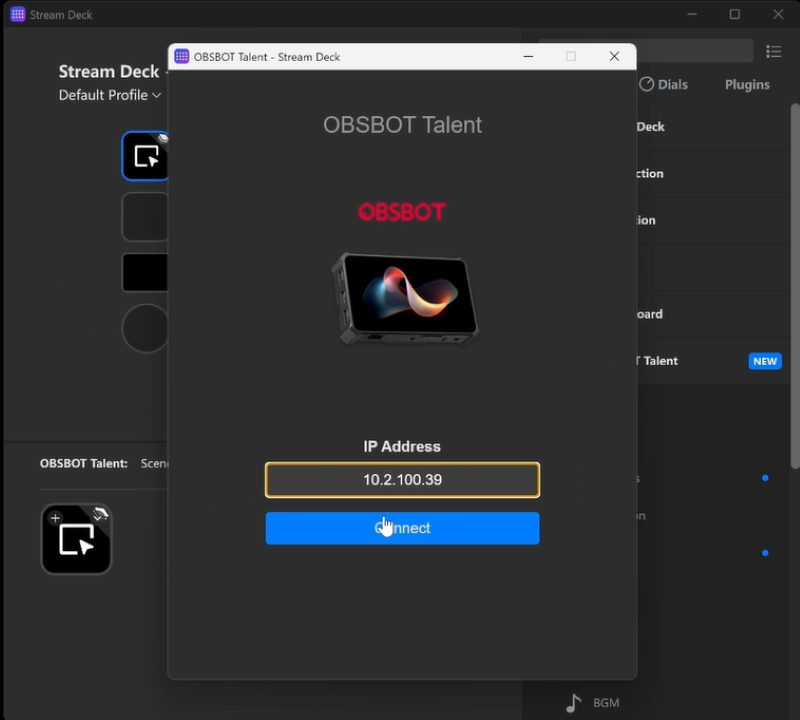
Once connected, Talent 2 controls will become available for configuration in Stream Deck.
Customize Your Stream Deck Controls
You can now customize Stream Deck around your production workflow.
Simply drag your preferred OBSBOT functions onto the buttons or dials on your Stream Deck.
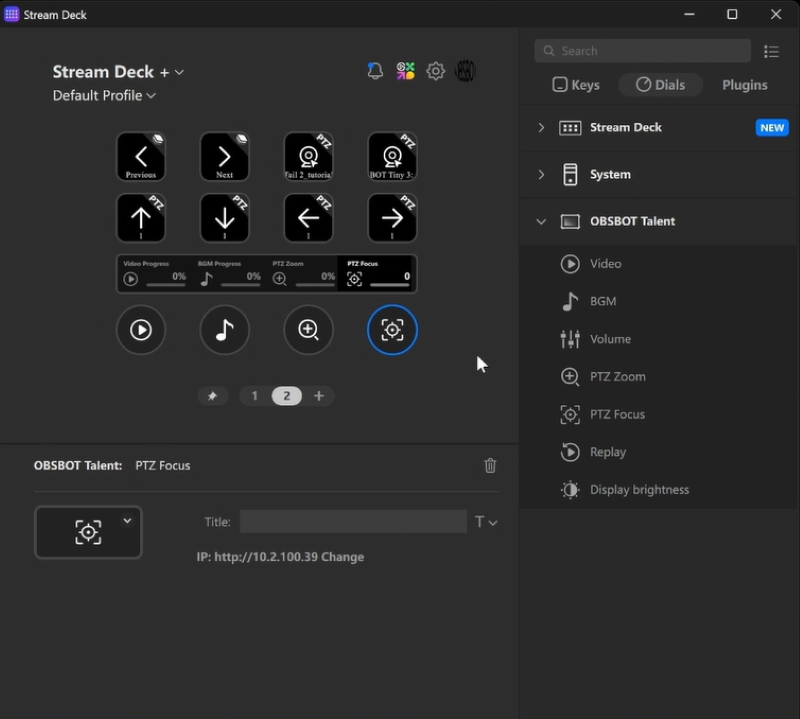
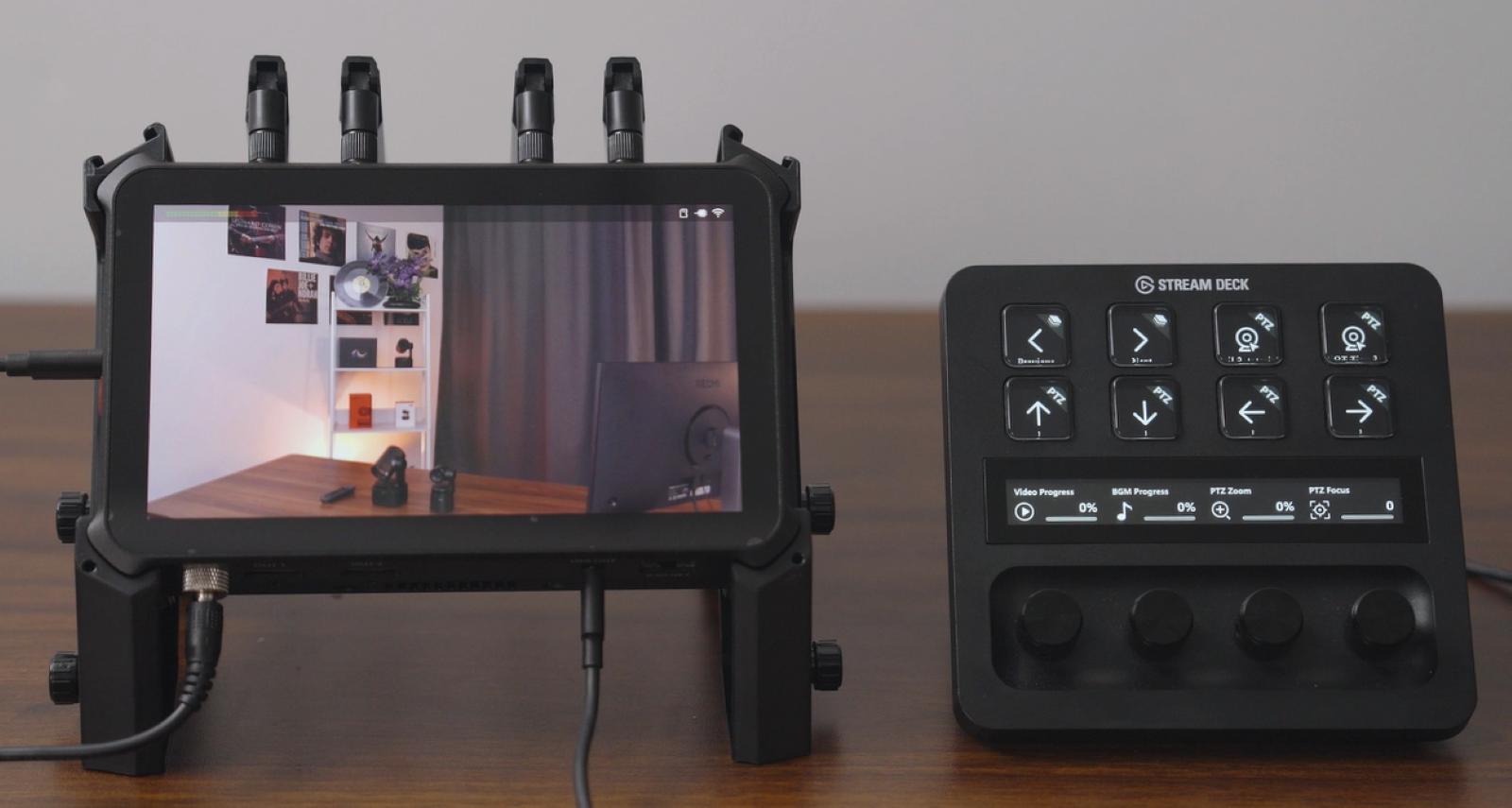
Depending on your setup, you can configure controls for functions such as:
- Switching scenes
- Controlling PTZ movement
- Managing preset positions
- Triggering GFX overlays
- Adjusting audio and video settings
Arrange the controls based on the functions you use most frequently during production.
Control Your Production with Stream Deck
Once setup is complete, you can control Talent 2 directly from Stream Deck.
For example, press an assigned scene button to instantly switch to the corresponding view, or use configured controls to operate connected OBSBOT cameras without navigating through the Talent 2 touchscreen.
With Talent 2 and Stream Deck working together, frequently used production controls stay right at your fingertips, helping you operate multi-camera productions more efficiently.
Web-UI
The Web UI lets you access and control Talent 2 from a web browser on another device, giving you more screen space and a flexible operating position during production.
- Make sure Talent 2 and your computer are connected to the same network.
- Find the IP address of your Talent 2.
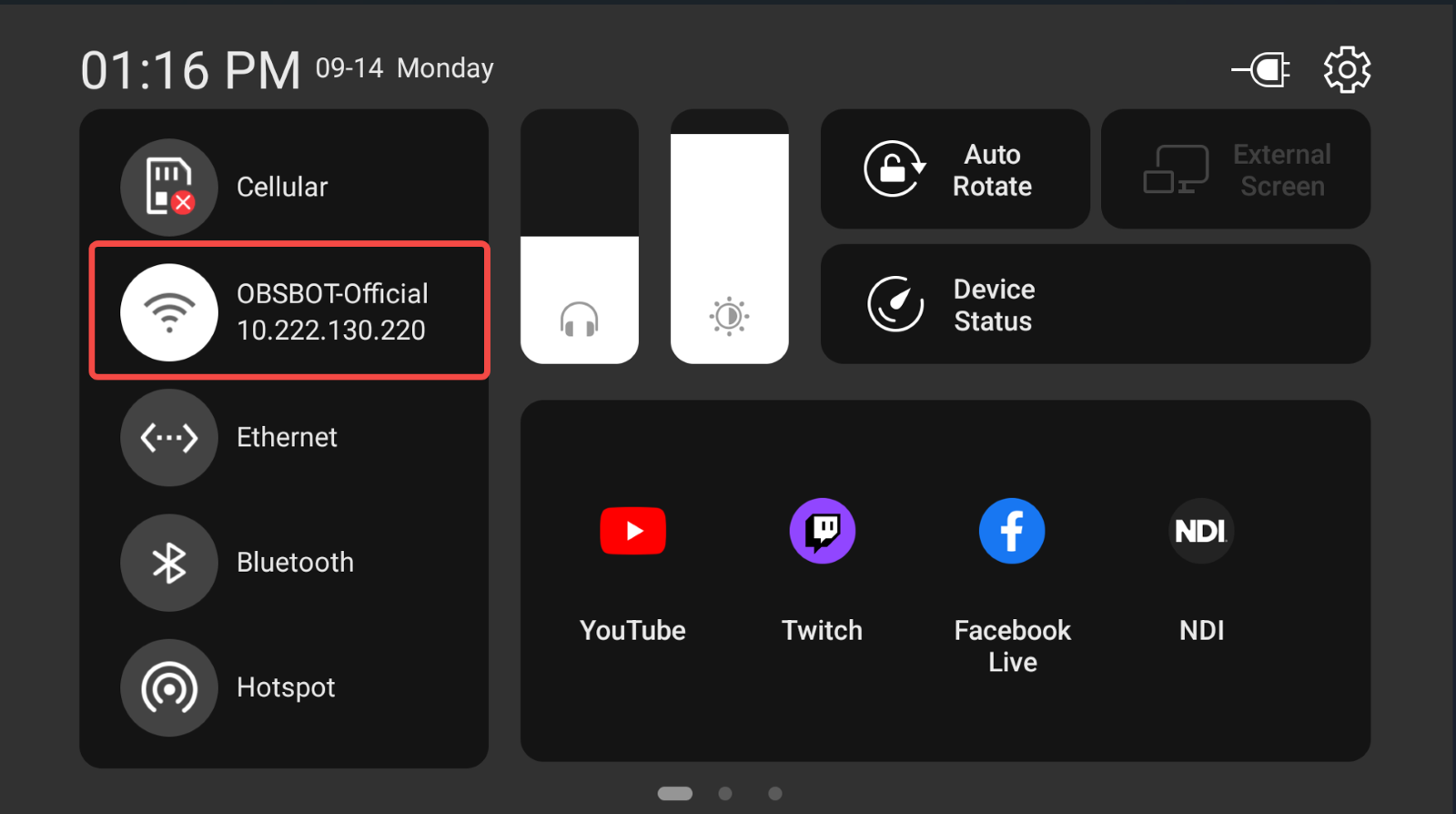
- Open a web browser on your computer and enter the Talent 2 IP address in the address bar.
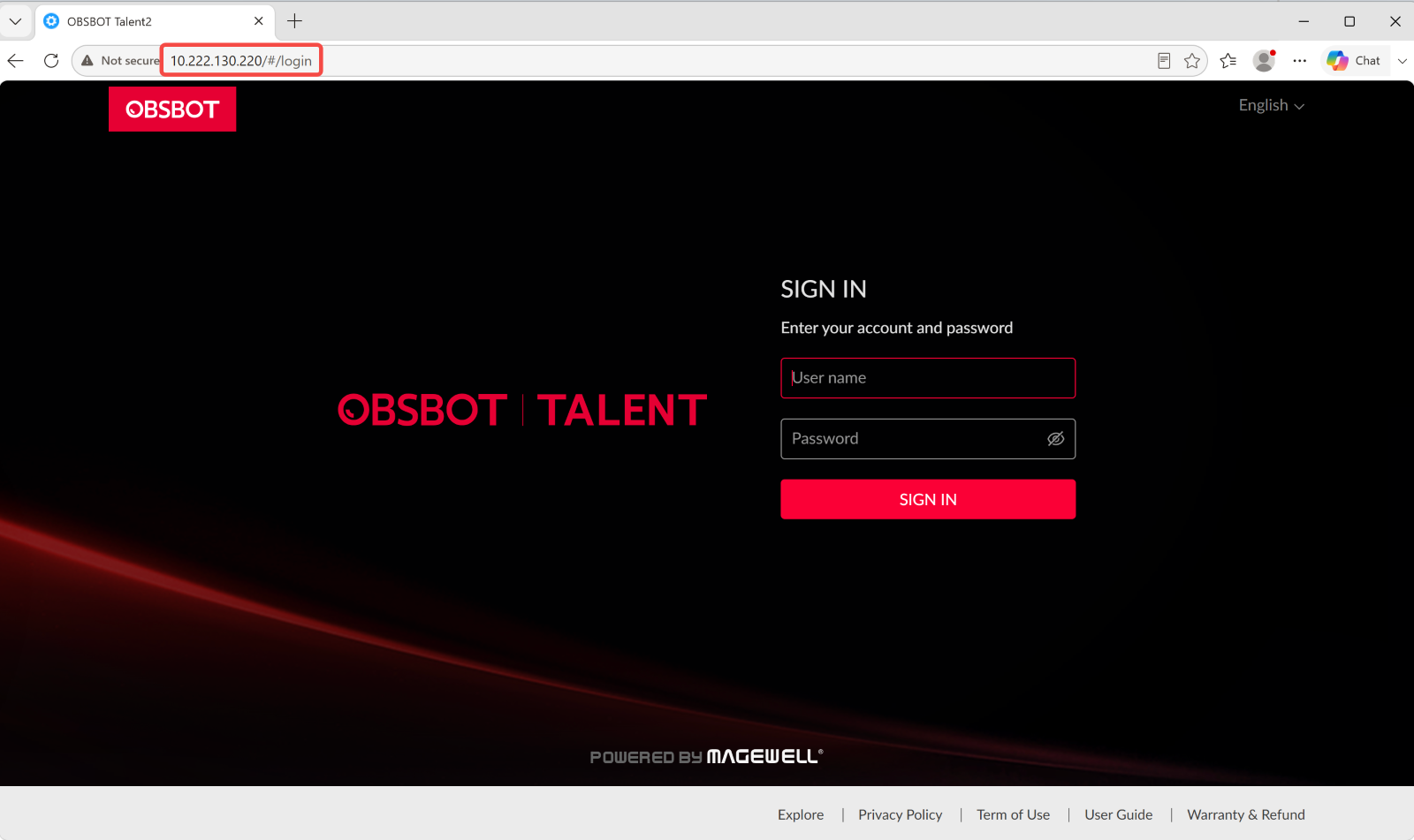
- On the login page, enter Admin as both the default username and password.
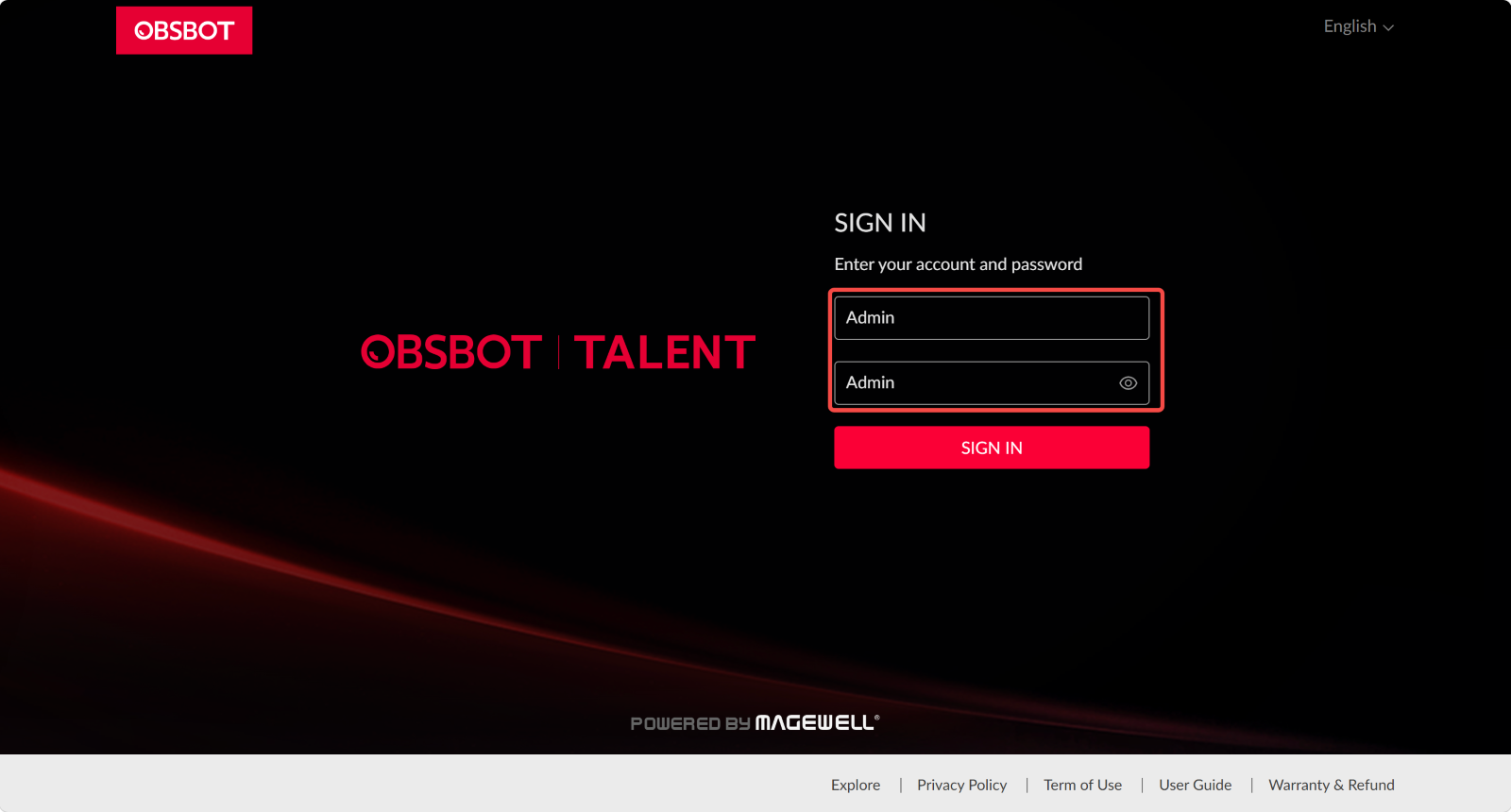
- Once logged in, the Talent 2 Web UI will open in your browser.
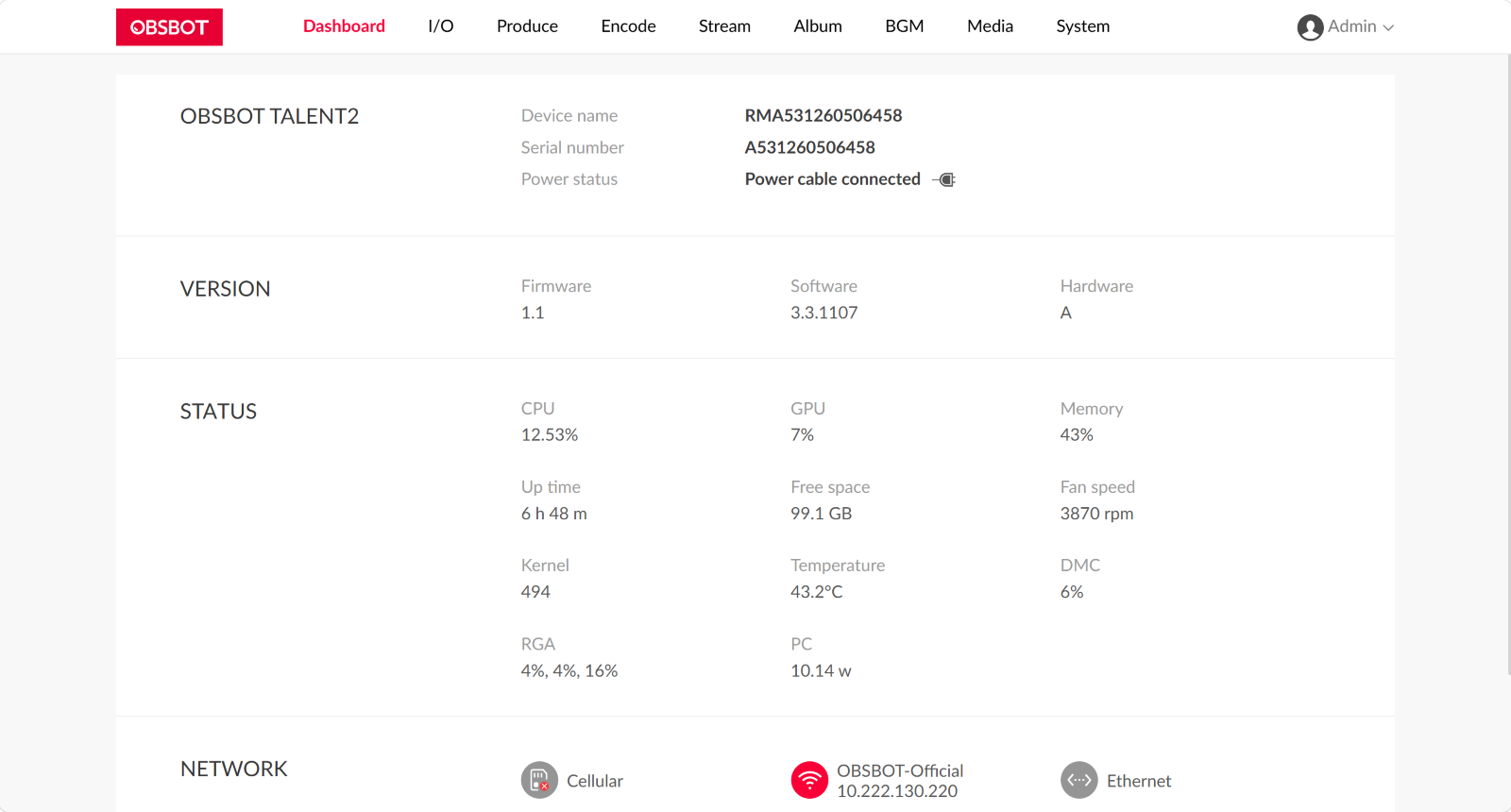
- From the Web UI, you can manage scenes, connected cameras, GFX, audio, streaming, recording, and other production controls.
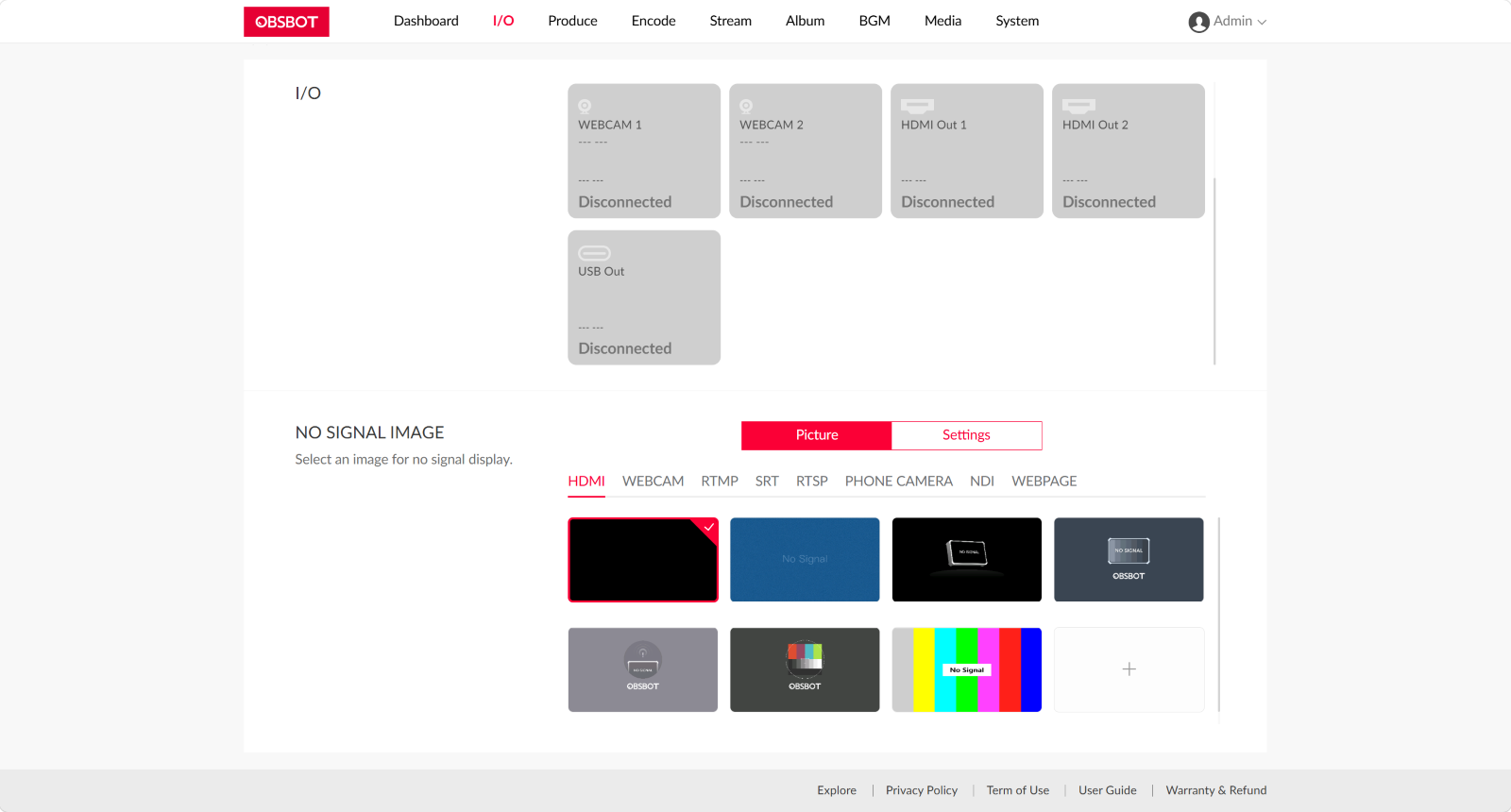
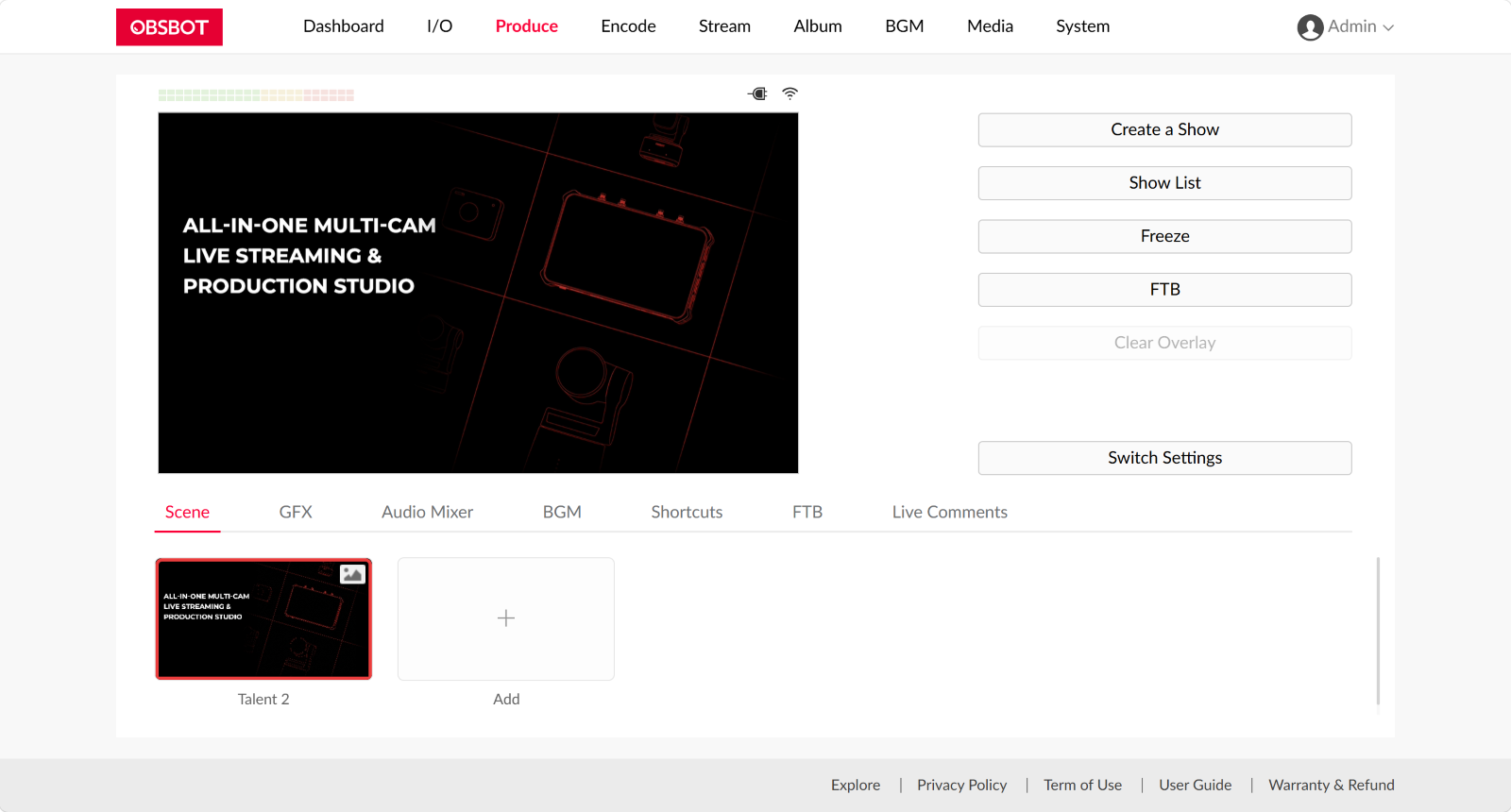
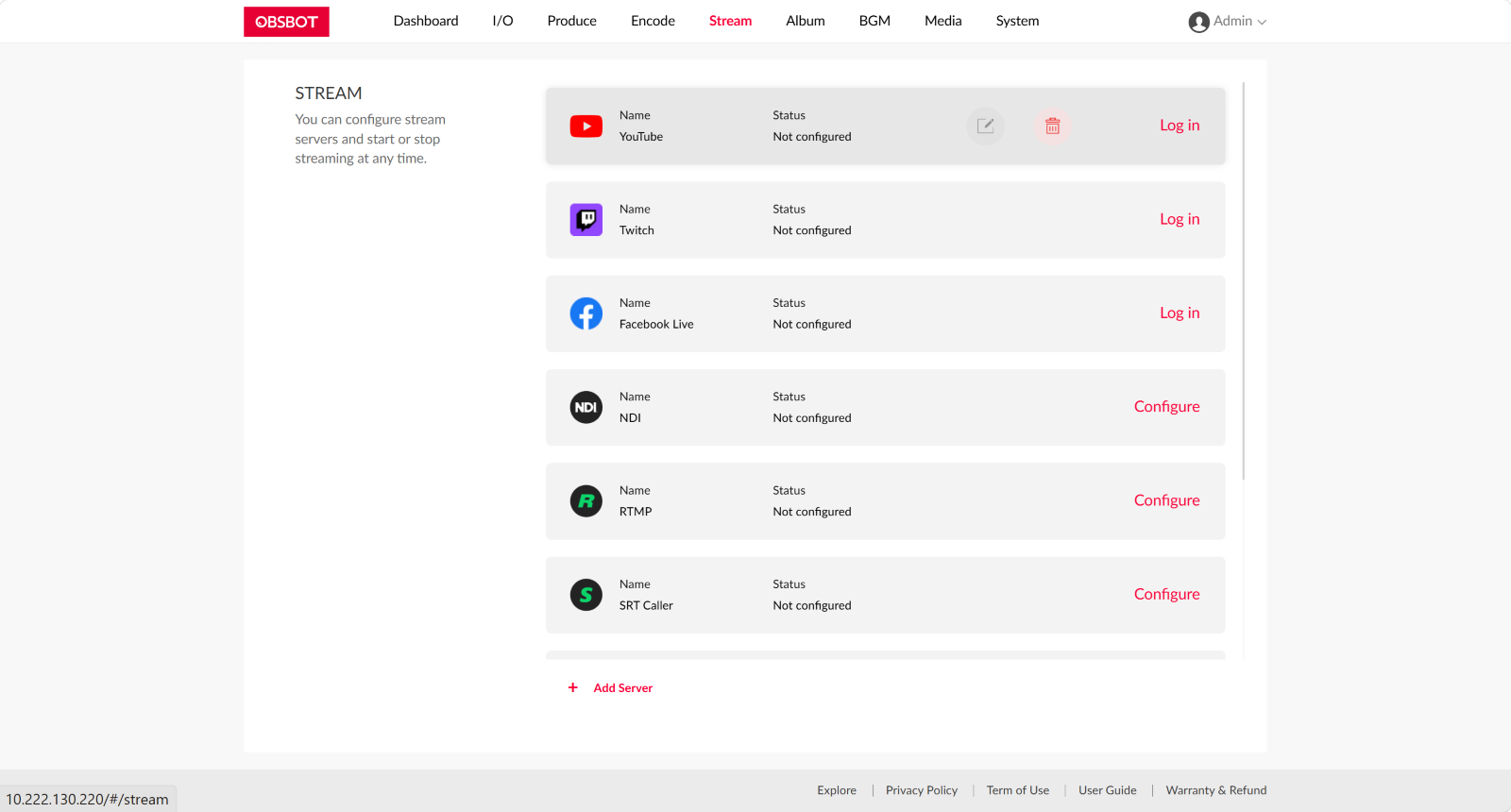
With the Web UI, you can manage your production from a larger screen while keeping Talent 2 available for monitoring and other operations.
Keyboard
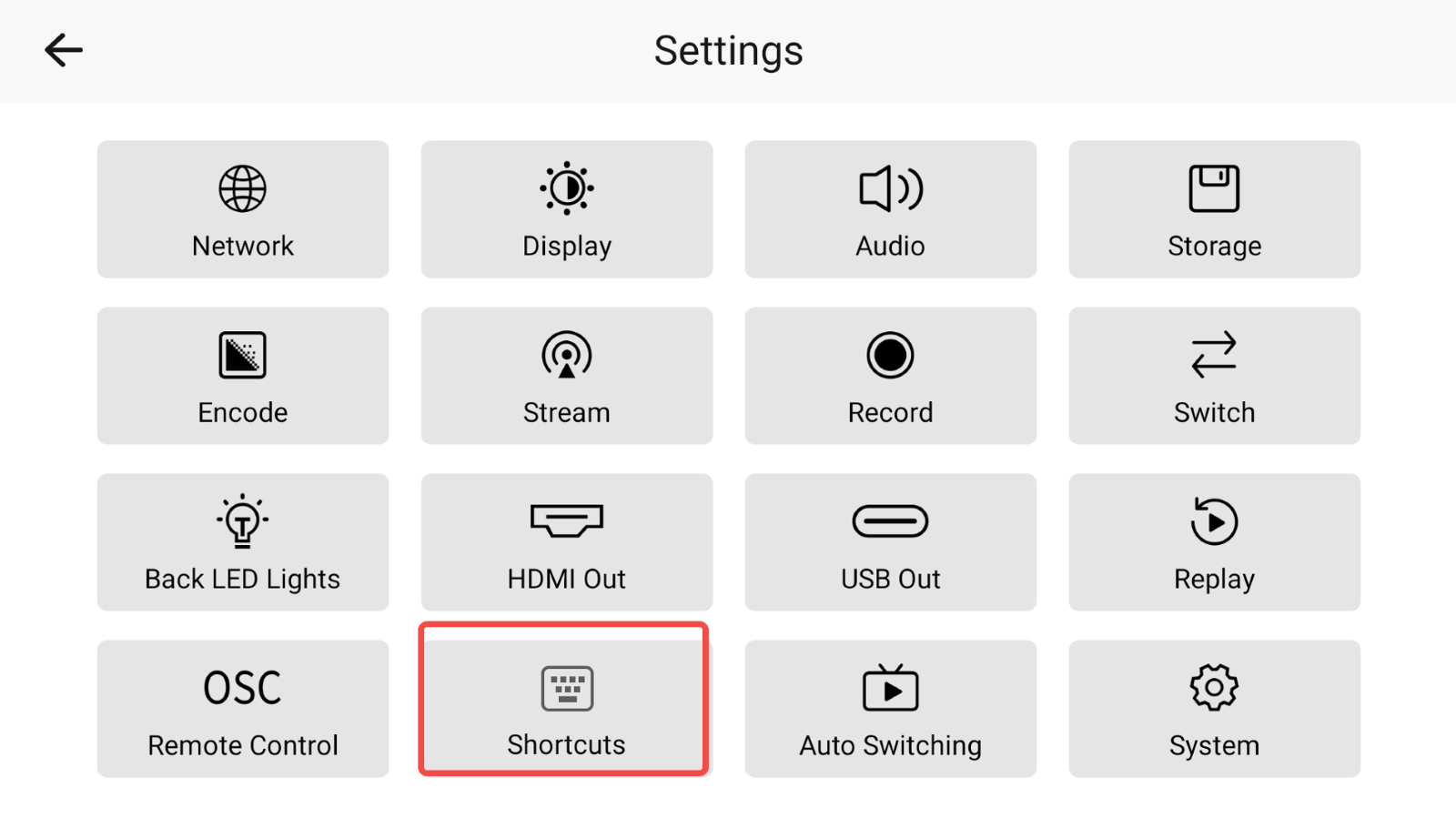
- Open Settings > Shortcuts on Talent 2.
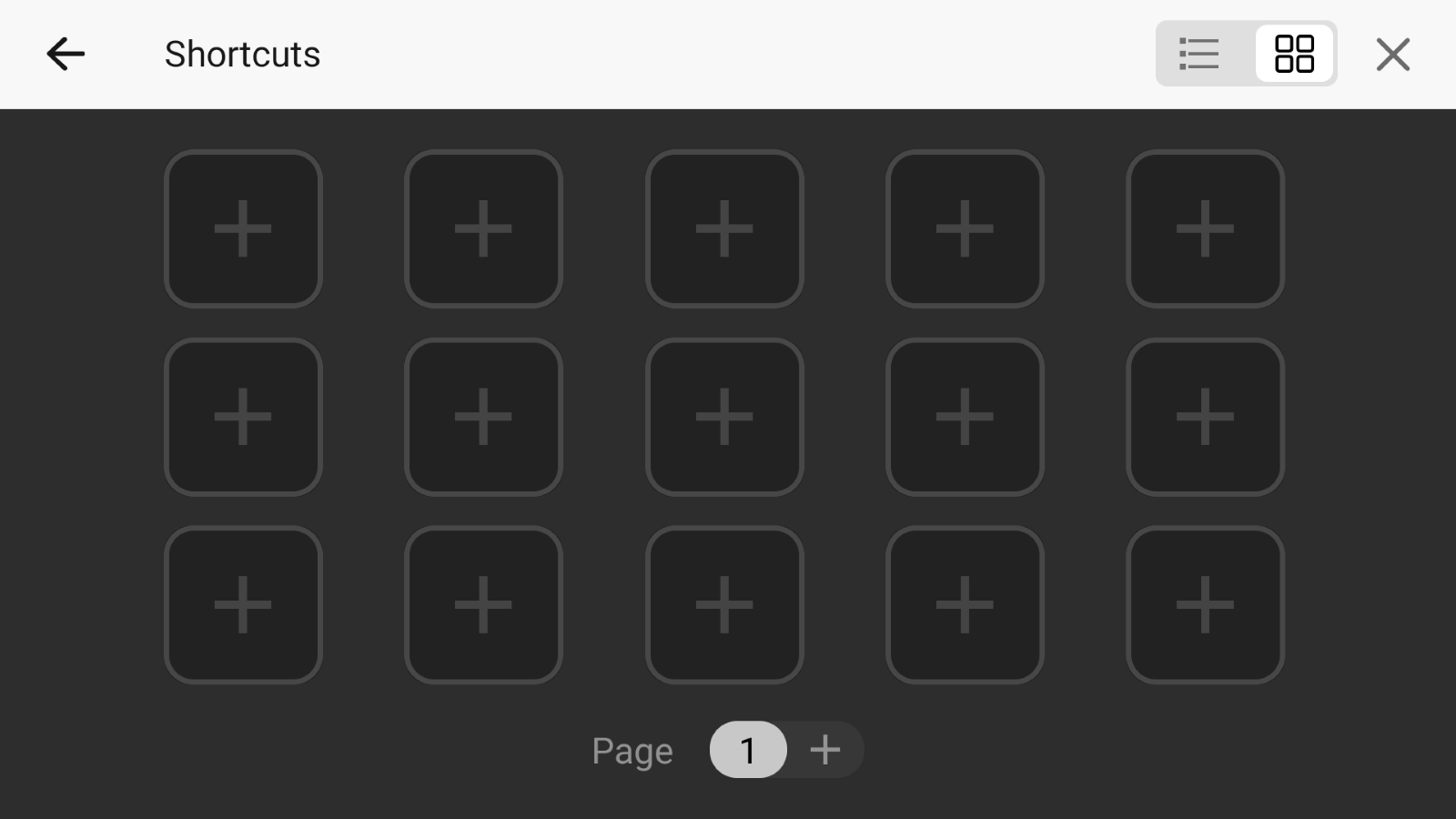
- On the Shortcuts page, tap any + button to create a shortcut.
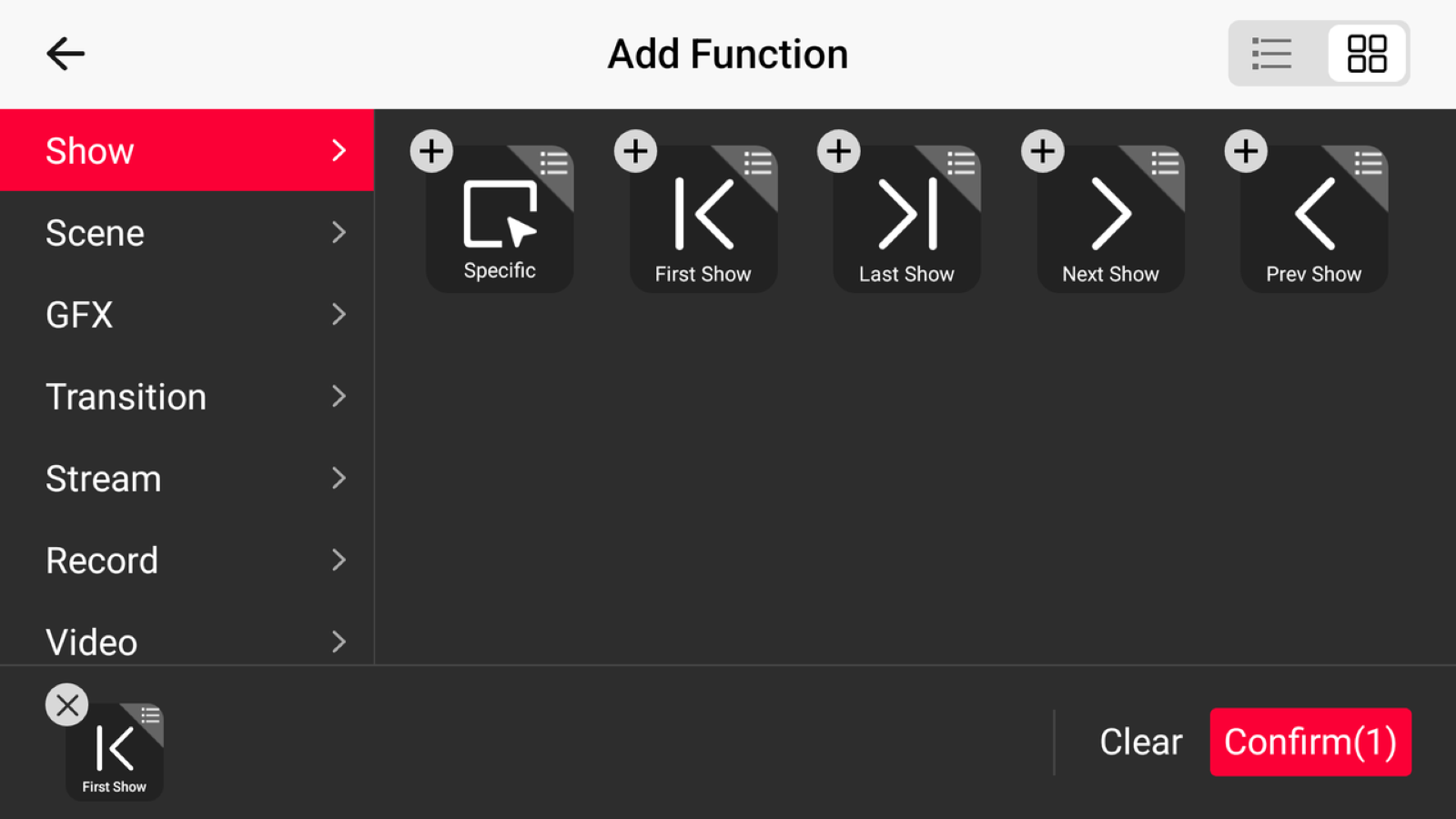
- Select the desired shortcut function and tap Confirm.
- Customize the shortcut name, text color, and background color as needed.
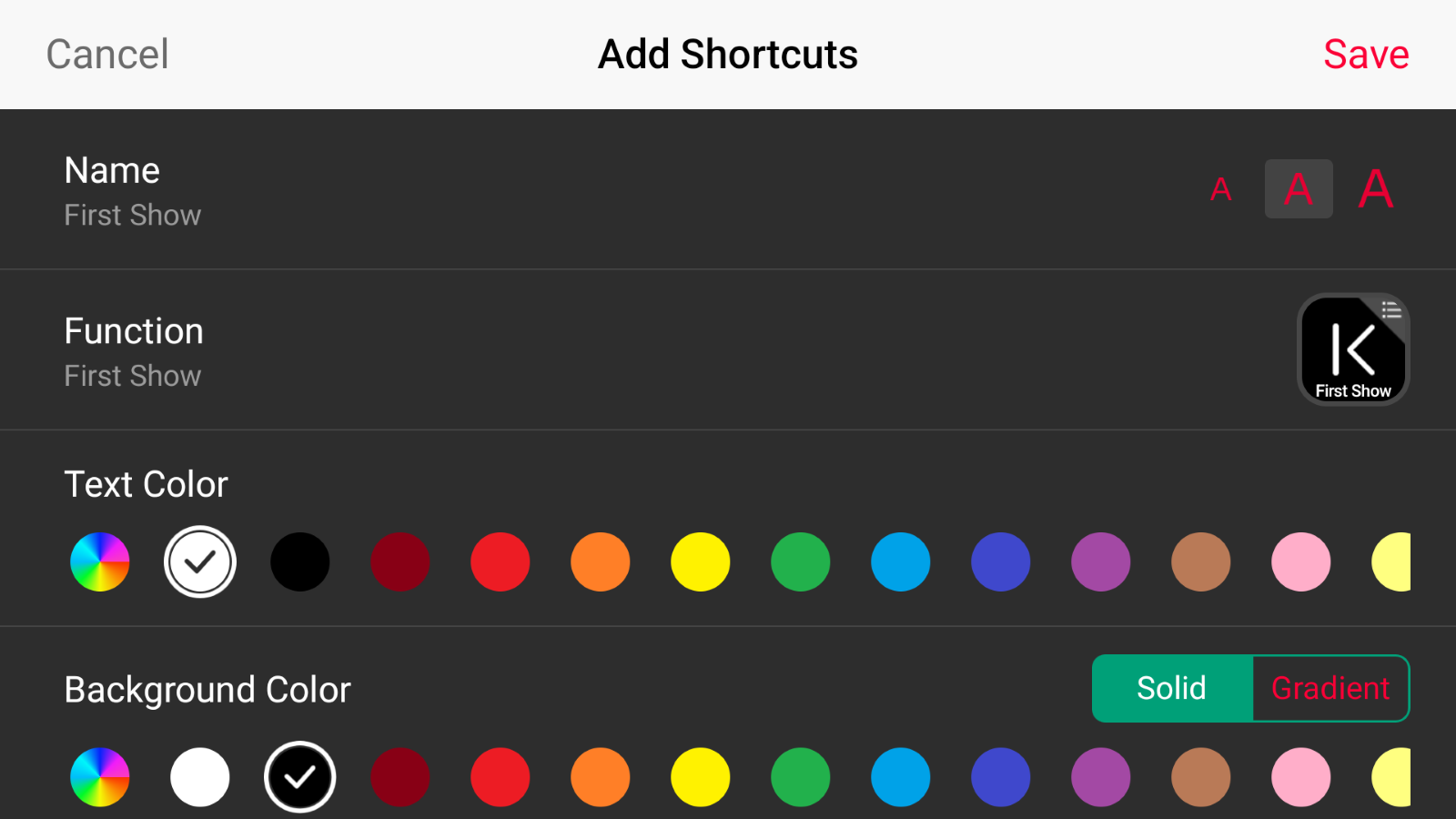
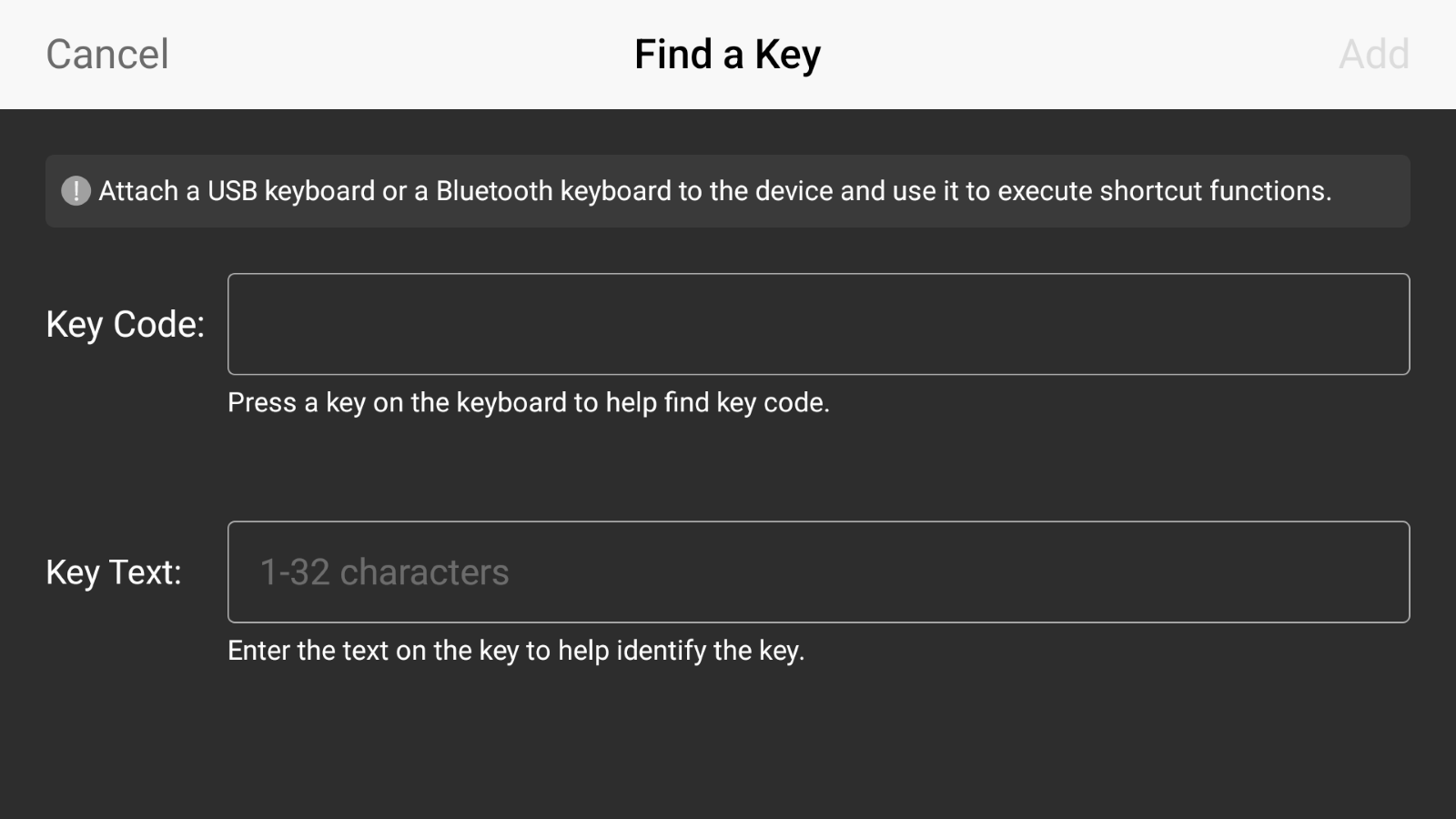
- At the bottom of the page, tap Add and press a key on your USB or Bluetooth keyboard to assign it to the shortcut.
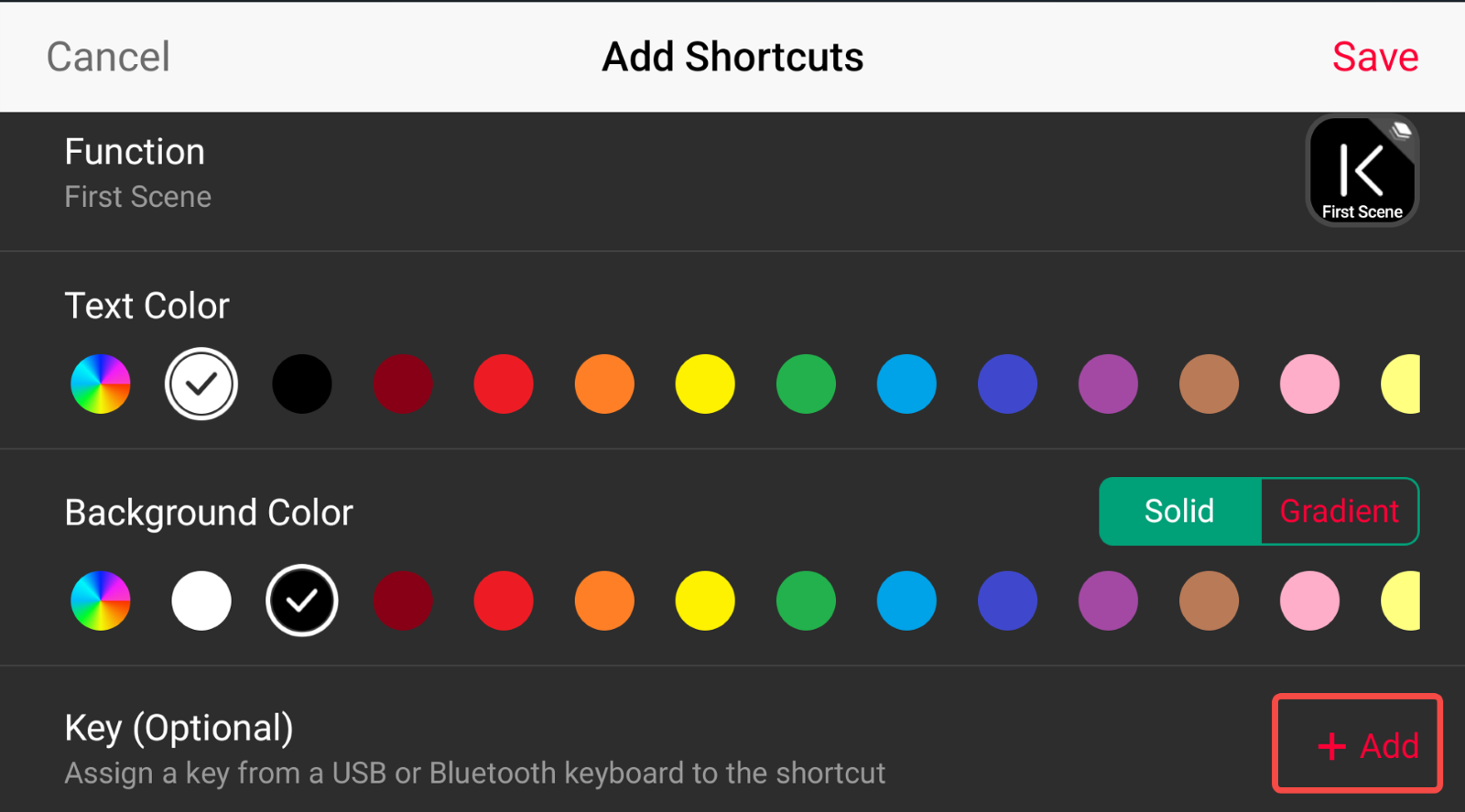
- Once assigned, use the corresponding key on your USB or Bluetooth keyboard to trigger the shortcut function.